
When you come back from a shoot with a set of photos, you usually want them to share one consistent look. Doing that one photo at a time is slow. Here are two ways to apply the same look across many photos at once.
Option 1: Apple Photos copy and paste edits
This is built in and free, and good for basic adjustments.
- Edit one photo the way you like it.
- Tap the three-dots menu and choose Copy Edits.
- Select the other photos.
- Tap the menu and choose Paste Edits.
The catch: this carries the Photos app's own adjustments and filters, not an imported LUT or preset, and it skips crop, straighten, and perspective. It is handy, but it is not the same as applying a film LUT or a Lightroom preset.
Option 2: Apply a LUT or preset across a batch with RAWCraft
If your "look" is a .cube LUT or an .xmp preset, you want an app that can apply it across many photos and export them together.
- Import your look into RAWCraft once.
- Choose the photos you want to work on.
- Give them your look. Each photo keeps its own look and intensity, so you can leave one untouched or grade another differently.
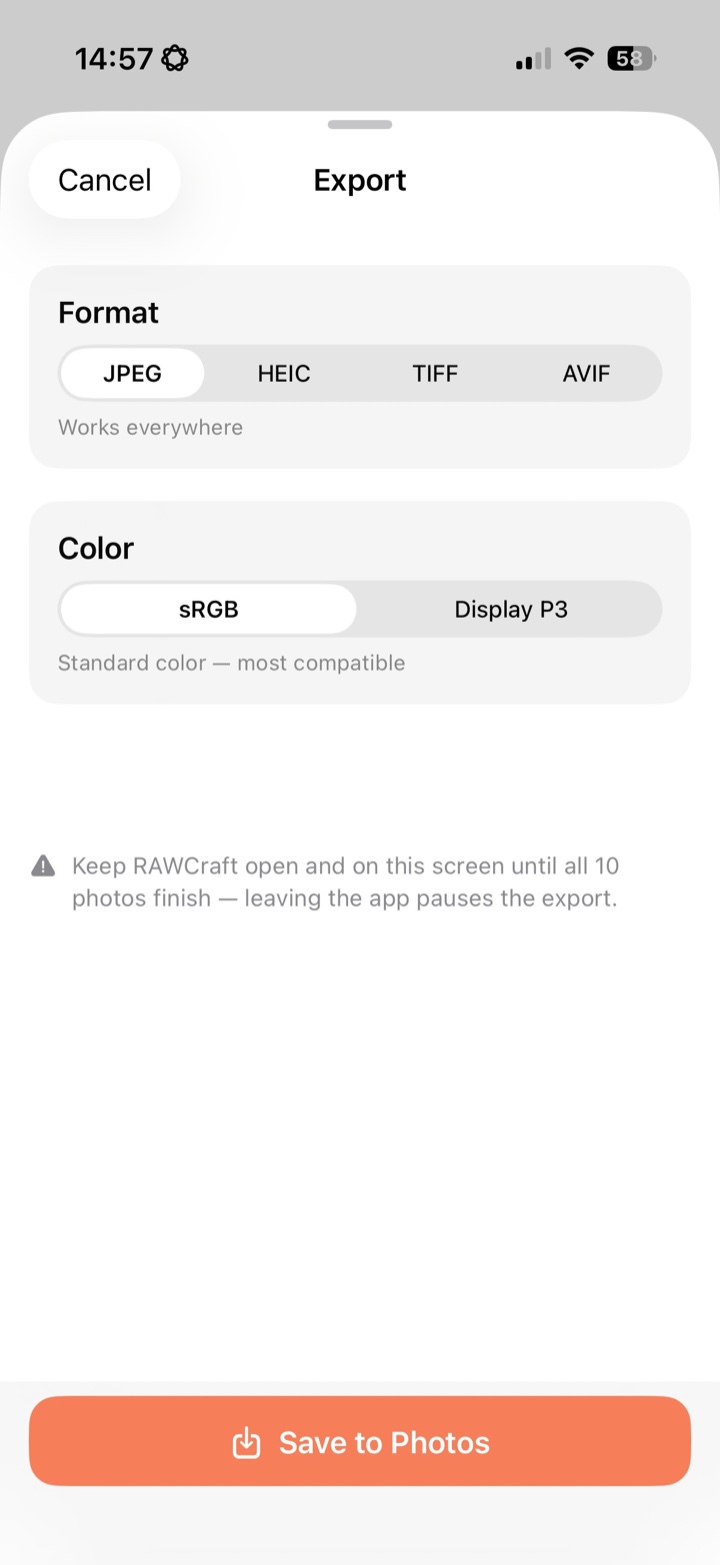
- Export the whole set. The export sheet tells you exactly how many photos the look was applied to, so a batch is never a surprise.
Tips
- ProRAW batches are big. Keep the app open and on the export screen until the set finishes, so nothing pauses.
- Originals are safe. RAWCraft never overwrites your originals, so a batch is always reversible.
RAWCraft is a one-time $14.99 with a free export so you can try a batch on your own photos first.