You bought or made a set of Lightroom presets, they arrived as .xmp files, and now you are staring at your iPhone wondering how to actually use them. You are not doing anything wrong. Getting XMP presets onto an iPhone has always been more fiddly than it should be.
This guide explains why, walks through the official Lightroom route step by step, covers the old DNG conversion for when you need it, and shows a third route that skips Adobe entirely if you shoot Apple ProRAW.
What an XMP preset actually is
An .xmp file is not a photo. It is a small text file that lists a set of Lightroom adjustments: exposure, contrast, white balance, the tone curve, color mixing, split toning, grain, and so on. When you apply a preset, Lightroom reads those values and lays them over whatever image you have open.
That detail is the root of the iPhone headache. iOS has no built-in idea of what to do with a loose .xmp file, so for years the only way to move a preset onto a phone was to bake it into an image first.
One useful aside: presets from Adobe Camera Raw in Photoshop are .xmp files too, in the same format. Everything below applies to those equally.
Why XMP presets are awkward on iPhone
- For a long time, Lightroom on iPhone would only accept presets baked into a
.dngfile. So preset makers told you to convert your.xmpto.dngon a desktop computer before you could use it on your phone. - Adobe added direct
.xmpimport to Lightroom Mobile, which helped, but it still trips people up: you need an Adobe account, you must not unzip the preset pack first, and the import button is buried under Presets, then Yours, then a three-dots menu. - Either way you are committed to working inside Lightroom and signing in to Adobe.
None of this is hard once you know the steps. Here they are.
Option 1: Import XMP into Lightroom Mobile (the official way)
- Download the preset pack to your iPhone and save it to the Files app. For this route, if it came as a zip, leave it zipped. Lightroom reads it as is.
- Install the Adobe Lightroom app and sign in with an Adobe account.
- Open any photo in Lightroom, tap Edit, then tap Presets along the bottom.
- Tap the Yours tab, then the three-dots menu, then Import Presets.
- Select your downloaded files. Your presets now live under Yours, and you can tap any of them to apply it to a photo.
Two things that catch people out
Unzipping the pack before importing into Lightroom (leave it zipped), and looking under the wrong tab. It has to be Presets, then Yours, not Recommended or Premium. RAWCraft is the other way around: it wants the loose .xmp file, so extract the zip first.
Option 2: Convert XMP to DNG on a computer (the old way)
If you are on an older version of Lightroom, or a preset only ships as a DNG, the original method still works. It needs a desktop copy of Lightroom.
- On desktop Lightroom Classic or Lightroom CC, open any RAW or DNG photo and apply just the preset you want.
- Export that photo as a DNG file.
- Get the DNG onto your iPhone with AirDrop, iCloud, or email, and import it into Lightroom Mobile.
- With the DNG selected, save its settings as a new preset.
It works, but you need a computer and the desktop app, which rather defeats the point of editing on your phone.
Option 3: Skip Lightroom entirely (if you shoot ProRAW)
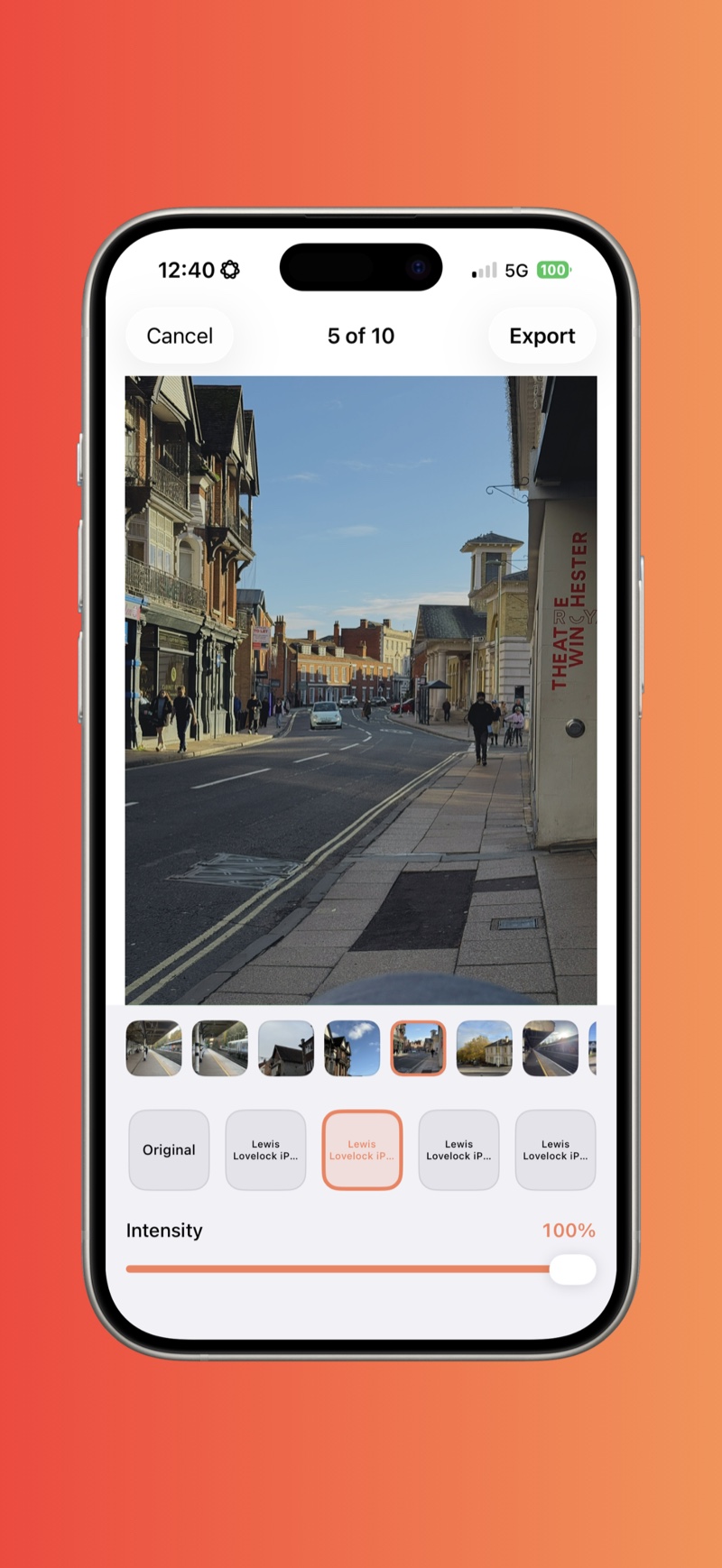
If you shoot in Apple ProRAW, there is a more direct path. RAWCraft is an iPhone app that imports your .xmp presets straight from the Files app and applies them to your ProRAW photos. No Adobe account, no DNG conversion, no desktop step. It reads the same .xmp files, and keeps them in one library alongside any .cube LUTs you own, which Lightroom Mobile cannot apply at all.
- Capture in ProRAW (Settings, Camera, Formats, ProRAW). Shooting ProRAW needs a Pro model, the iPhone 12 Pro or a later Pro; here is what ProRAW is and how to turn it on.
- In RAWCraft, open the LUTs tab and import your
.xmpfile from Files or iCloud Drive. If the pack arrived as a zip, tap it in Files to extract it first, then import the loose.xmp. You can select several files in one go. - Open a ProRAW photo, tap your preset, and adjust the intensity until it looks right.
- Export at full quality, in Display P3 if you want the wide color. Your original ProRAW is never changed.
What RAWCraft reproduces from a preset
To be straight with you about what transfers and what does not:
| Preset setting | Applied by RAWCraft? |
|---|---|
| Exposure, contrast, white balance | Yes |
| Tone curve and color mixing (HSL) | Yes |
| Split toning and color grading | Yes |
| Grain, vignette, clarity, texture, dehaze | Yes |
| Sharpening and luminance noise reduction | Yes |
| Masks, gradients, and brush edits | No |
| Healing and retouch | No |
| Camera profiles | No |
| Profile look tables (Look, LookTable, RGBTable) | No |
| Lens corrections and geometry / upright | No |
RAWCraft is built for the overall look, applied to a ProRAW photo, done entirely on the phone. If a preset includes something it cannot reproduce, it tells you at import rather than quietly getting it wrong.
So which option should you use?
A quick rule of thumb:
- You live in Lightroom and shoot in any format: use Option 1 and import your XMP into Lightroom Mobile.
- You only have a desktop and a stubborn old preset: Option 2 still works.
- You shoot ProRAW and want it done on your phone without an Adobe login: that is exactly what RAWCraft is for.
How to check what is inside a preset
An .xmp preset is plain text, so you can read it. Open it in any text editor on a computer, or import it into RAWCraft on the phone, which reads the file and lists anything it is going to skip. A few things worth looking for:
- The settings. Every adjustment is a line starting with
crs:.crs:Exposure2012,crs:Contrast2012, andcrs:Temperatureare the basic corrections,crs:ToneCurvePV2012is the tone curve, andcrs:HueAdjustmentRedand its siblings are the color mixer. - The grain. Three numbers:
crs:GrainAmount,crs:GrainSize, andcrs:GrainFrequency, which Lightroom shows as Roughness. IfGrainAmountis missing or 0, the preset carries no grain, whatever the seller's examples look like. - A profile dependency. A
crs:CameraProfileset to anything other than Adobe Standard or Adobe Color, or acrs:Lookblock, means part of the look lives in Adobe's profile files rather than in the preset. No import route carries that part, and it is the usual reason a preset seems to do almost nothing. - Photo-specific edits. Masks appear as
crs:MaskGroupBasedCorrectionsand healing ascrs:RetouchAreas. Both are tied to the photo they were made on and are skipped everywhere, including in Lightroom Mobile.
When a preset misbehaves
- The preset seems to do almost nothing. Some presets lean on a camera profile rather than explicit adjustments. Those carry little of their look outside the app and profile they were built around, in any import route.
- The look lands stronger or softer than the seller's examples. Preset examples are usually shot on specific cameras in specific light. Treat the preset as a starting point: in Lightroom, adjust exposure after applying; in RAWCraft, slide the intensity.
- The import finds no presets. In Lightroom, you probably unzipped the pack first, or you are under Recommended instead of Yours. In RAWCraft, extract the zip first and check the files actually end in
.xmp. - Skin looks off. Warm film-style presets push oranges. Dial the strength back before judging the preset as broken.
Quick answers
Are presets and LUTs the same thing? No, but they are cousins. A preset is a list of editing instructions; a LUT is a direct color remap. Here is the plain-English explanation. RAWCraft applies both from one library.
Do XMP presets work on ProRAW photos? Yes, and honestly that is where they shine, because ProRAW keeps the highlight and shadow detail the preset's tone moves need. More in what Apple ProRAW is and how to edit it.
Do I still need to convert XMP to DNG in 2026? Only in the corner cases from Option 2: old Lightroom versions or DNG-only preset packs. Both current routes, Lightroom Mobile and RAWCraft, read .xmp directly.
Whichever route you take, your presets are yours to keep. The point is simply to get the look you paid for onto the photos you actually shot.
If that means doing it on your phone, on your ProRAW files, RAWCraft is a one-time $14.99 with 10 free exports so you can try it first. It is not a subscription.