
A LUT is just a color recipe, and it is only useful once you actually have some. Here is where to find good .cube LUTs and how to put them to work on your iPhone. If you are not sure what a LUT is yet, start with What is a LUT?.
Free LUTs
There are plenty of free .cube LUTs around, usually from creators, photography blogs, and free downloads on sites like Gumroad.
One important caution: a lot of free LUTs are made for video, often for log or HDR footage. Those can look harsh or strange on an ordinary photo. Look for LUTs described as being for stills or photos, and always dial the intensity back if a look feels heavy.
Paid LUT packs
Filmmakers and photographers sell .cube packs, often built to emulate specific film stocks or cinematic grades. These are usually a one-time purchase and yours to keep. Again, favor packs aimed at photos rather than video footage.
How to use them on your iPhone
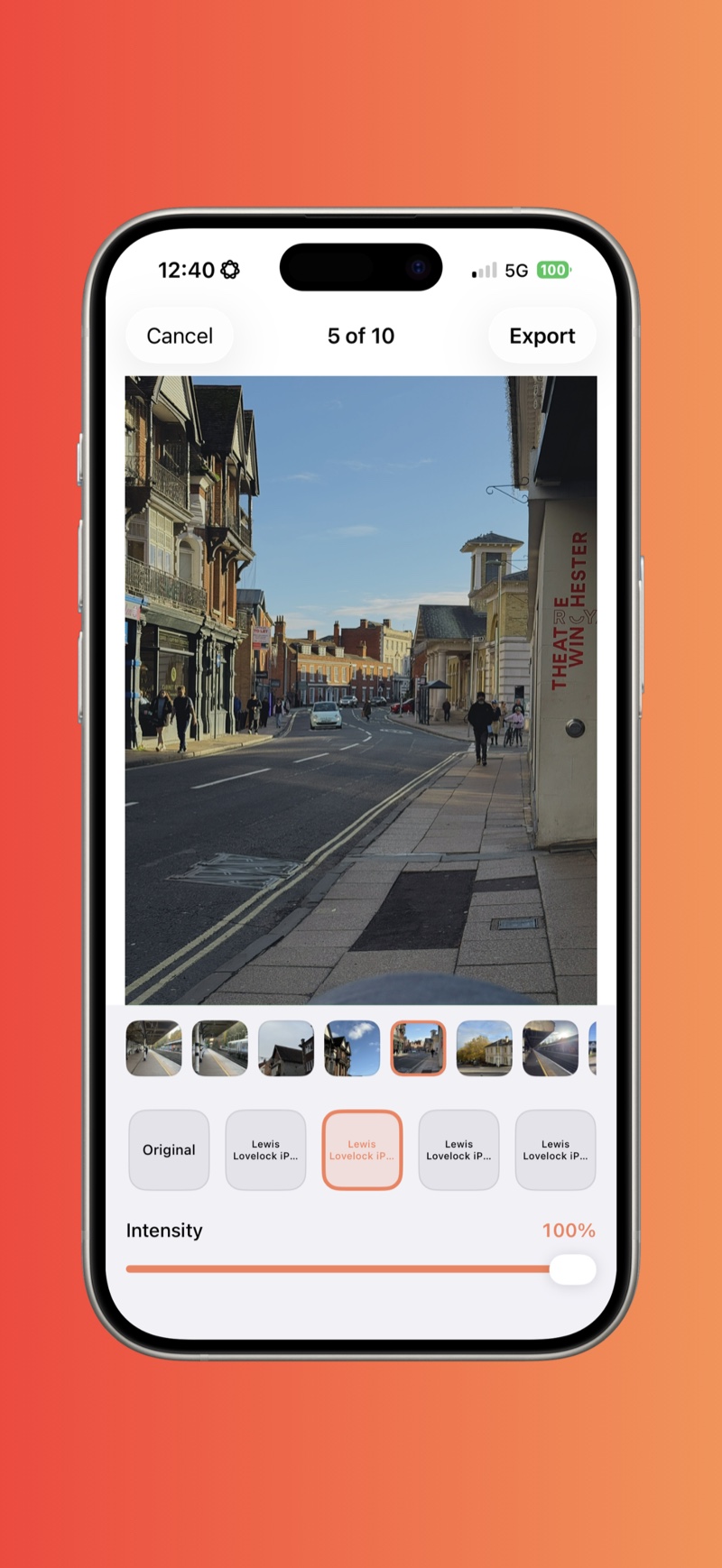
Once you have a .cube file on your phone, you need an app that applies LUTs to photos. See how to apply a .cube LUT to an iPhone photo. RAWCraft uses the standard .cube format, so any LUT you download or buy will work, and you can import a whole folder at once.
Already have Lightroom presets?
If your looks are Lightroom .xmp presets rather than .cube LUTs, you are not stuck. See using Lightroom presets on iPhone. RAWCraft reads both, so your LUTs and your presets live in one place.
RAWCraft is a one-time $14.99 with a free export, so you can grab a LUT and try it on your own photo first.